

WordPress Dashboard – Step by Step Guide
1. Introduction to WordPress Dashboard
The WordPress Dashboard is the central control panel where users manage their website content, themes, plugins, and settings. It provides an intuitive interface with various menu options for customization and configuration.
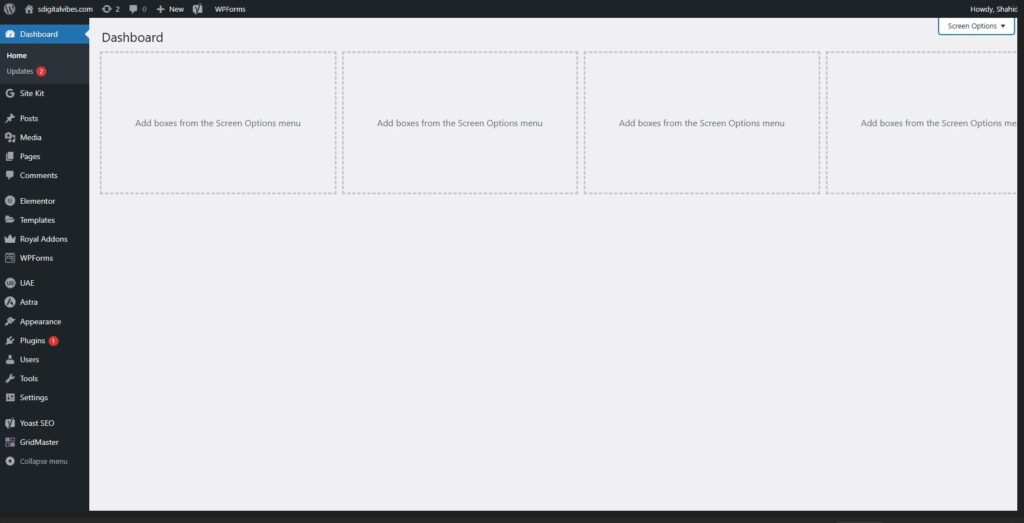
2. WordPress Dashboard Main Menu Options
Below is a detailed table explaining all the primary dashboard menu options:
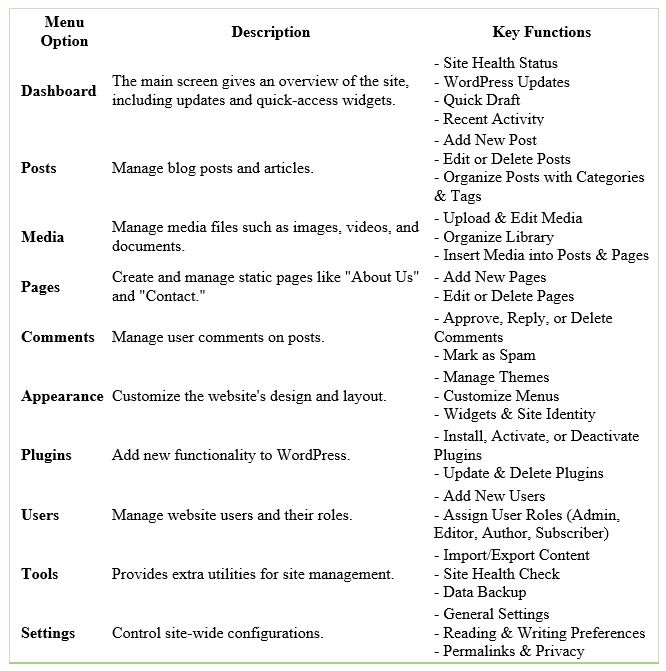
3. Detailed Explanation of Key Sections
3.1 Dashboard Overview
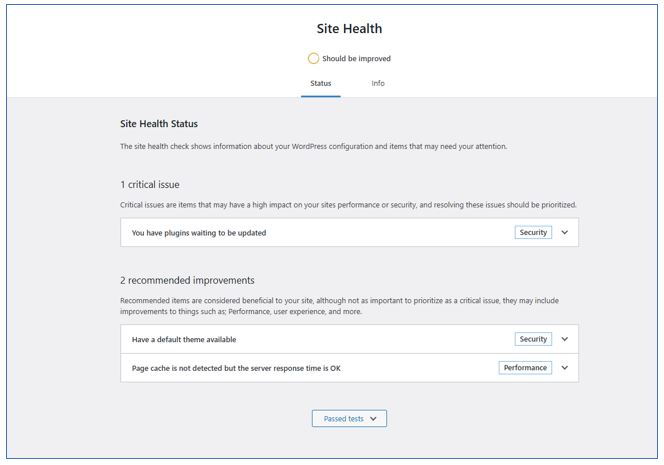
The WordPress Dashboard provides widgets such as:
- Site Health Status – Displays security and performance issues.
- Quick Draft – Allows quick content drafting.
- At a Glance – Shows published content count and active theme.
3.2 Managing Posts
- Navigate to Posts > Add New to create blog posts.
- Use the Categories & Tags feature to organize posts.
- Posts can be scheduled, saved as drafts, or published immediately.
3.3 Managing Media
- Go to Media > Add New to upload files.
- Edit images using built-in tools like cropping and resizing.
- Media can be inserted into posts or pages.
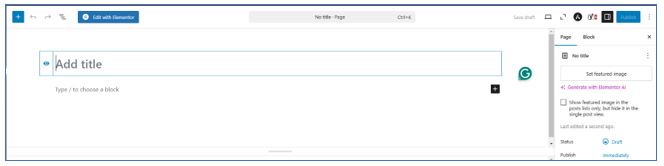
3.4 Creating Pages
- Pages are different from posts as they do not have categories.
- Pages > Add New Page > Give page title > Publish > Publish.
- Ideal for static content such as “Privacy Policy” or “Services.”
3.5 Handling Comments
- Moderation tools allow approval, spam detection, and user engagement.
3.6 Customizing Appearance
- Themes: Change the website design under Appearance > Themes.
- Widgets & Menus: Organize navigation and sidebars.
- Site Identity: Add a logo, tagline, and favicon.
3.7 Installing Plugins
- Navigate to Plugins > Add New to install plugins.
- Essential plugins include SEO tools, security plugins, and page builders like Elementor, Header & footer Builder, Royal Elementor for extra features.
3.8 User Management
- Different roles have different permissions:
- Administrator – Full control
- Editor – Manage posts & pages
- Author – Write and publish own posts
- Subscriber – Read content
You can create, modify users with different roles here.
3.9 Configuring Settings
- General Settings: Change site title, tagline, and admin email.
- Reading Settings: Set homepage display (static or latest posts).
- Permalinks: Customize URL structure for SEO.
